
The Best Digital Planner for reMarkable Paper Pro Move That Actually Syncs Your Calendar
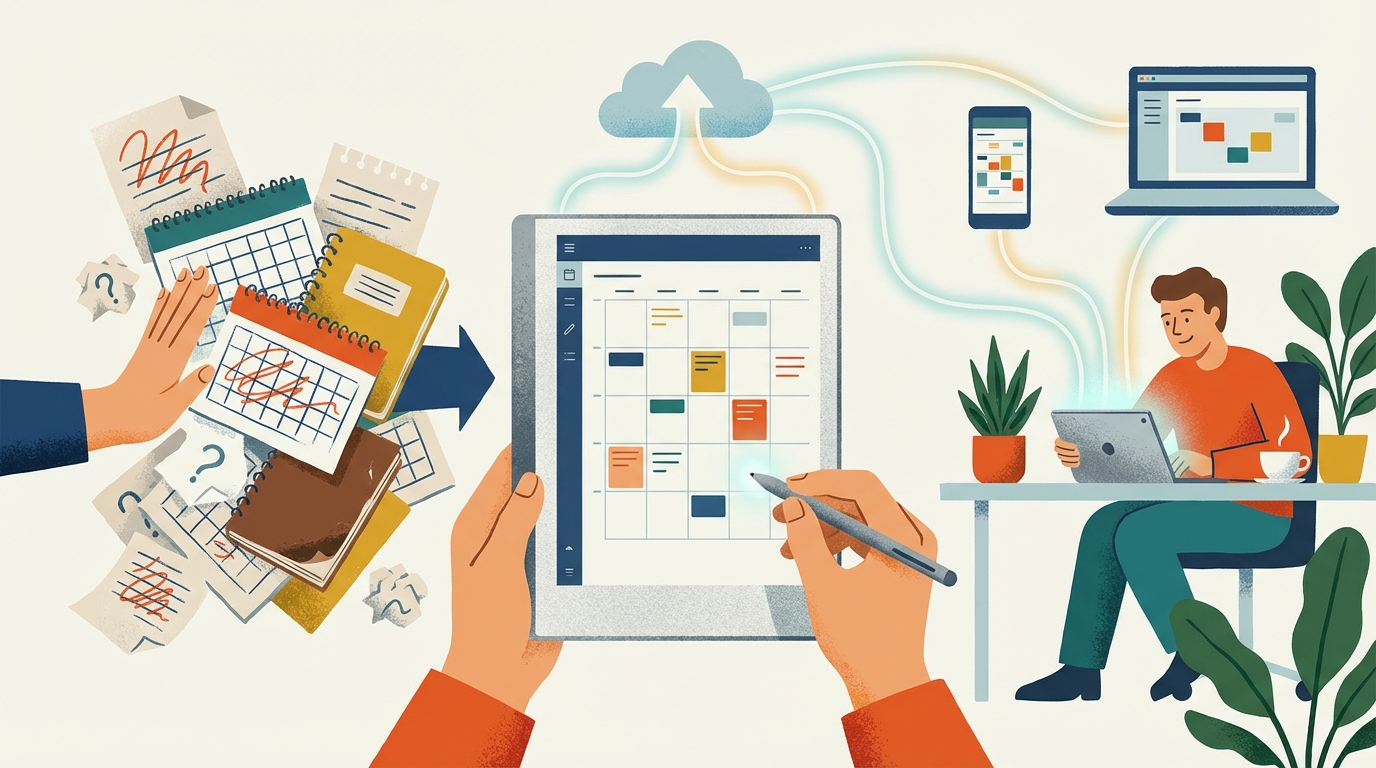
You bought a reMarkable Paper Pro Move to get work done with focus. But finding a good digital planner for your Move is harder than it should be. Most options are static PDF templates that look nice on Etsy, but turn into a chore when you need to update your schedule. Every month, you have to download new templates, manually write in your meetings, and wonder why you spent hundreds of dollars on an e-ink tablet just to do more busywork.
These days there is a better way to plan. This guide covers the types of digital planners available for the reMarkable Paper Pro Move, what to look for, and how to get your actual calendar events synced directly to your tablet without manual entry.
Why Does Your Move Need a Better Planner?
The reMarkable Paper Pro Move ships with some basic planner templates built right in. You get a day view, a week view, and a blank page. Those work well for simple note-taking, but they fall short for people who manage real schedules. There is no way to import events from Google Calendar, Outlook, or Apple Calendar using the default planner templates. You have to write everything by hand.
The official reMarkable planner templates offer hyperlinked navigation between days and weeks. That is a great touch. But they are still static files. Your Tuesday 10am standup does not magically appear on the page. You have to write it yourself or it is not there.
What Most People Do (and Why It Gets Old)
Most people buy a PDF planner template from Etsy or a site like onplanners. These planner templates come in yearly editions with pre-dated pages, hyperlinked navigation, and space for notes. Some are well designed. The problem is they are crystalized in time. Your calendar changes all the time, but your planner doesn't.
In about two weeks, most people stop using their planner and go back to writing in a notebook. The tablet is now a notebook again.
Types of Digital Planners for the Move

Not all planners work the same way. Here are the main categories you will find when shopping for a digital planner for your reMarkable Paper Pro Move.
Static PDF Templates
That is the most common type of planner. You download a PDF file, transfer it to your Move, and write on it. Prices range from free to about $30 for a full year. They are very polished and have hyperlinked pages so you can click to move between months, weeks, and days.
But the obvious drawback is that nothing updates automatically. When the year ends, you purchase a new template. When your schedule changes, you erase and write again.
Calendar Sync Apps
This smaller category of tools actually pull your calendar data and generate a planner PDF with your actual calendar events already entered in. Planneriffic is one example. It connects to Google Calendar, Outlook, and Apple Calendar, then creates an interactive PDF with your events entered in the correct time slots. The PDF syncs to your Move via USB, and your handwritten notes remain on the tablet between syncs.
This solution solves the biggest pain point. Your planner reflects your actual schedule without any manual entry. When your meetings change, the next sync updates the planner automatically.
What to Look for in a Move Planner

Before you choose a planner, think about what you really need. Here are the features that make the greatest impact on your daily use.
Calendar Integration
The single biggest decision maker is whether your planner imports your existing calendar. If you live in Google Calendar or Outlook, a planner that does not import those events is simply a fancy notebook. Look for tools that support iCal feeds, which is the standard format used by Google, Outlook, Apple, and most other calendar apps. Our installation guide walks through exactly how to grab your calendar URL from each provider.
Navigation and Layout
Good planners let you click between views. A yearly overview should link to each month. Each month should link to its weeks. Each week should link to its days. This hyperlinked structure is what makes a digital planner feel different from a paper planner.
In addition to considering daily layout, do you need hour-long time slots or just a task list? Do you want a notes section at the bottom of every page? Planneriffic version 1.1.0 added a separate page for notes for each day, which gives you room to write freely without cluttering your schedule.
Sync Method
Planner files get transferred to your Move over USB or through the reMarkable cloud. USB sync through Developer Mode is the most reliable option because it works without internet connection and keeps everything local. Cloud sync requires a current subscription to reMarkable Connect.
If privacy matters to you, a locally synced planner means your calendar data does not leave your computer. Everything stays between your desktop and your tablet.
How Planneriffic Works as a Digital Planner
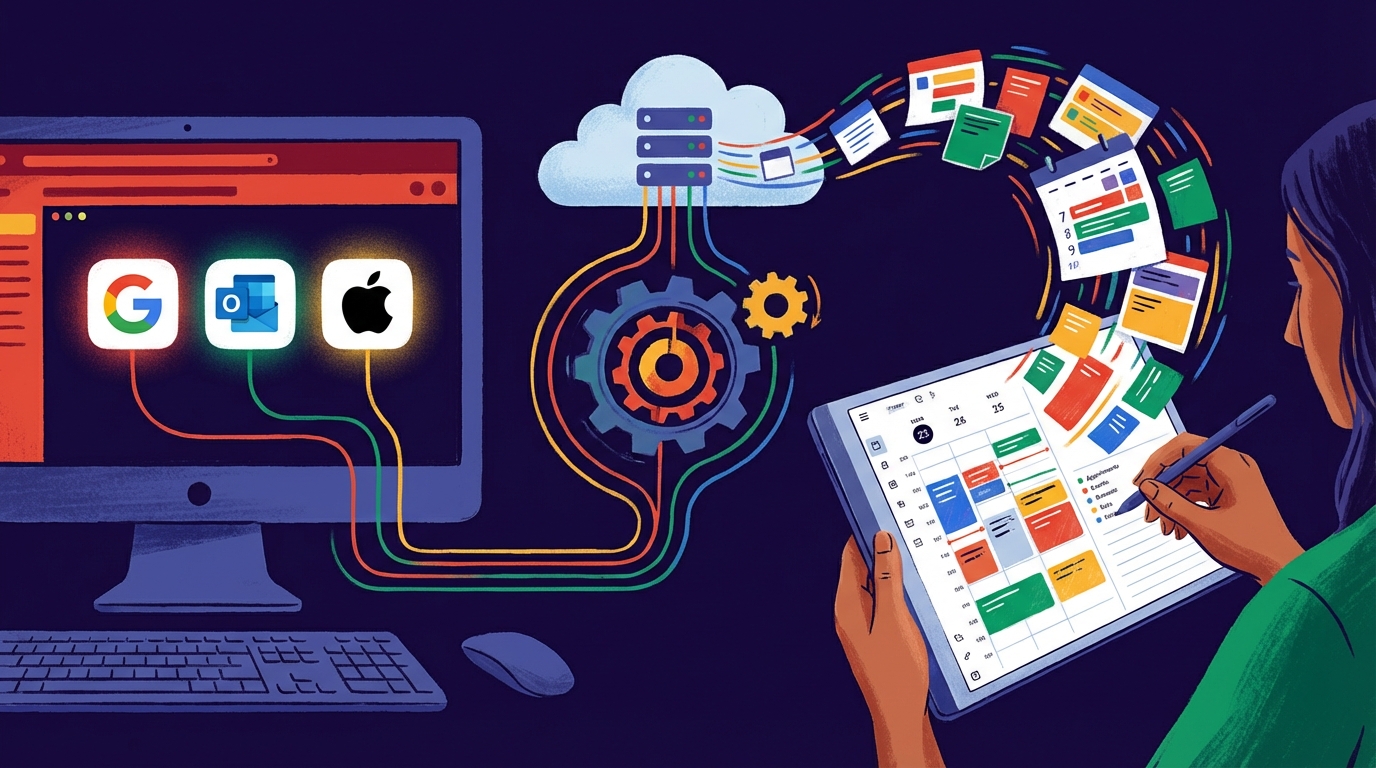
Planneriffic is a desktop tool for Windows and Mac built specifically for the reMarkable Paper Pro Move. It generates an interactive PDF planner based on your calendar feeds. Here is how the process works.
Setup
You add your calendar feeds from Google, Outlook, Apple, or any .ics file. The tool pulls your events and creates a complete planner with yearly, monthly, weekly, and daily views. Every page has hyperlinks so you can click to navigate between views on your Move.
Setting up the tool takes about five minutes. Check the installation guide for screenshots.
Auto Sync via USB
Connect your Move to your computer with a USB cable. Planneriffic detects the device and syncs the planner automatically. Your handwritten notes from previous days remain on the tablet. Only the upcoming pages get updated with new or changed events.
This happens in the background. Plug in the cable and the planner updates itself. Recent upgrades have improved the sync speed and added a system tray mode so the tool stays out of your way.
Customization
You control the time range displayed on daily pages, your time zone, which day your week starts on, and how many note pages to include. The tool also supports both light and dark mode on your computer, and the generated planner is designed to be readable on the Move's e-ink display.
Comparing Your Options
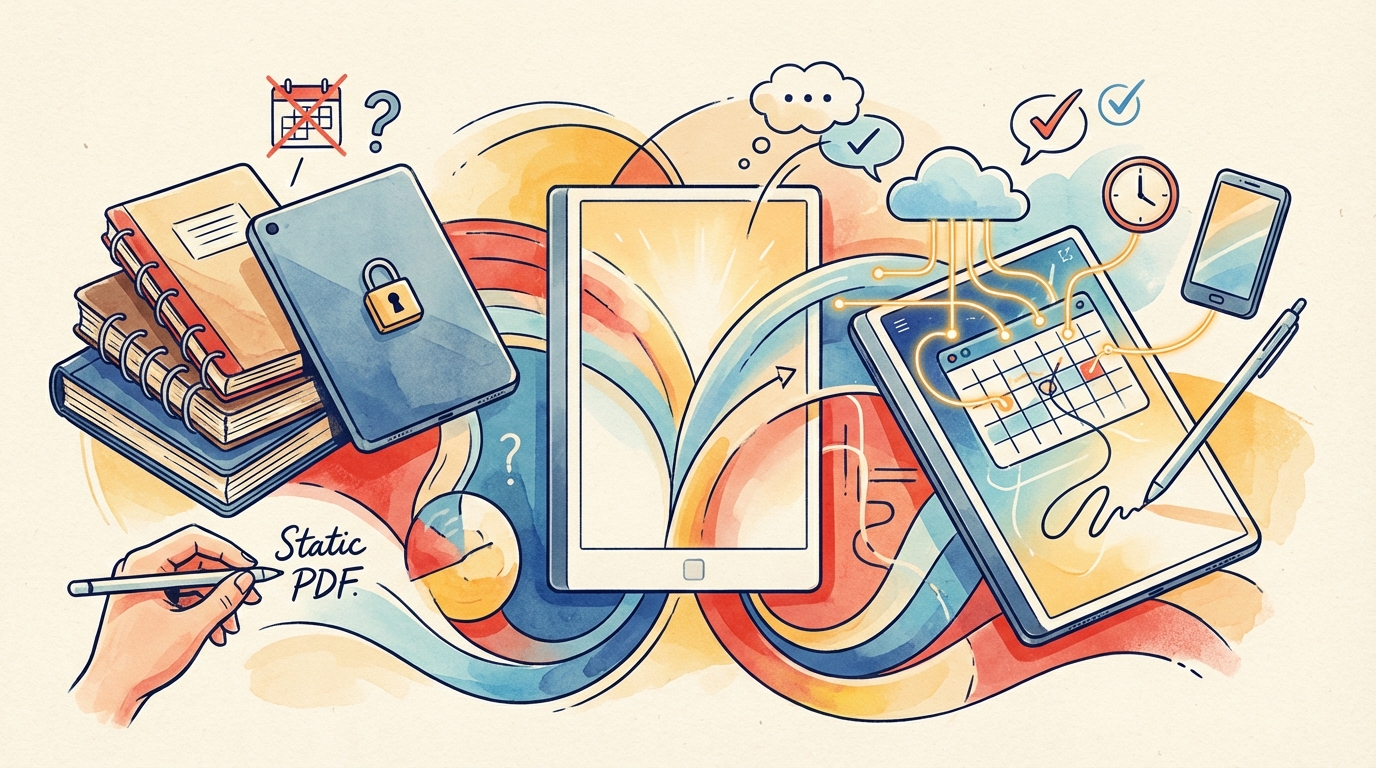
Here is a practical comparison of the primary approaches to using a digital planner on your reMarkable Paper Pro Move.
Static PDF Templates vs. Calendar Sync
| Feature | Static PDF Template | Calendar Sync (Planneriffic) |
|---|---|---|
| Calendar events auto-filled | No | Yes |
| Handwritten notes preserved | Yes | Yes |
| Updates when schedule changes | No | Yes, on next sync |
| Works offline | Yes | Yes |
| Price | $0 to $30/year | $29 one-time |
| Setup time | Download and transfer | 5 minutes |
A static template works well if your schedule is simple and predictable. If you have multiple calendars, recurring meetings, or a schedule that changes week to week, calendar sync saves you real time.
Do You Need reMarkable Connect?
Not for Planneriffic. It syncs over USB using Developer Mode, so you don't need the paid reMarkable Connect subscription. Your planner syncs happen through a direct cable connection to your Move. The app was built to work with Developer Mode and the reMarkable file system directly.
Getting Started
If you want a digital planner that reflects your real schedule, the fastest way to get started is to download Planneriffic and set it up with a free 7-day trial. No credit card required. You can have your calendars synced and a planner on your Move in less than ten minutes.
For those who prefer a static template, the reMarkable template gallery has free options that work well for basic planning. Just know you will be doing the data entry yourself.
Either way, the reMarkable Paper Pro Move is a very good tool for staying organized. The right planner just makes it even better.
Frequently Asked Questions
Can I use a digital planner on my Move without a subscription?
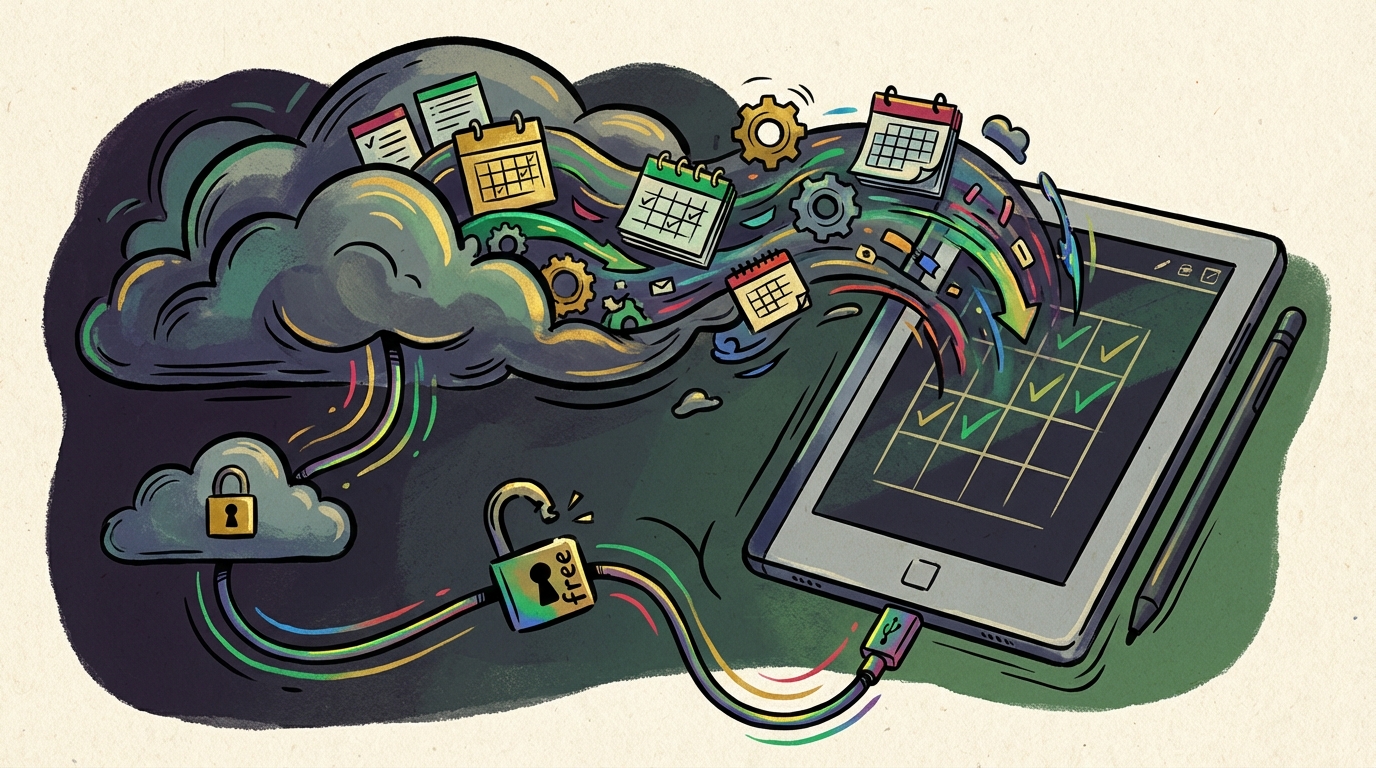
Yes. You can use static PDF templates without any subscription. Planneriffic also syncs over USB through Developer Mode, which is free. You do not need reMarkable Connect for either option.
How do I get my Google Calendar onto my Move?
Planneriffic does this automatically. Paste your Google Calendar's secret iCal URL into the tool, and your events show up on your planner. Check the installation guide linked above for step-by-step instructions.
Will my handwritten notes get erased when the planner syncs?
No. Planneriffic preserves your handwritten notes on past and current pages. Only the pages that will become part of your upcoming schedule will get updated with new or changed events. Your notes will remain intact.
What is the best free digital planner for the Move?
The reMarkable built-in templates are a decent free option. For more structure, the onplanners website has free hyperlinked PDF planner templates specifically designed for reMarkable devices. These are static templates, so you will need to enter your event times yourself.
Can I sync multiple calendars into one planner?
Yes. Planneriffic lets you add as many calendar feeds as you want. Google, Outlook, Apple, and any standard .ics file all merge into a single planner on your Move. Each calendar can have its own color so you can quickly distinguish between them.
Does Planneriffic work with the reMarkable 2 or Paper Pro?
Not yet. Planneriffic currently works with the reMarkable Paper Pro Move only. If you have a different reMarkable device, static PDF templates are your best option for now.