
reMarkable Paper Pro Tips and Tricks You'll Use Every Day
Most of the time you save on a reMarkable Paper Pro comes from a handful of gestures and tools that nobody points out during setup, but learning them takes an afternoon. If you ignore these shortcuts, you'll find yourself constantly tapping the toolbar while your workflow stays cluttered. Mastering the two-finger undo and the lasso tool prevents unnecessary friction during deep work sessions. It makes a difference.
Gestures Worth Learning First
You can save a lot of time by using your hands to fix mistakes instead of reaching for the toolbar, which keeps your flow going while you write or draw. Just tap the screen once with two fingers to undo a mistake you just made. If you realize you actually liked that line, tap with three fingers to redo the action quickly. These quick moves make the tablet feel natural because they're responding right where you touch it.
Navigating through your documents stays smooth when you swipe with one finger left or right to turn pages, or add a new blank page to your project, as the navigation guide shows. You'll also swipe down with one finger to extend a page when you need more writing space. Use two fingers to pan around a large canvas when you need to look at specific details. It feels fast because the screen is responsive.
When you are reading a PDF, a two-finger swipe left or right opens a hidden margin area, where you can jot extra notes without covering the main text. This trick allows you to keep the original document clean, while you record all your important thoughts. Using these gestures makes the tablet a useful tool, which stays out of your way during work.
Tools That Clean Up Your Pages
When you draw a shape and hold the Marker tip still at the end of the stroke, the reMarkable Paper Pro will snap the lines into a perfect circle or square. This little trick keeps your sketches looking sharp so you don't have to keep trying to draw straight lines. You can use this for quick diagrams or lists while keeping your pages neat and professional.
The lasso tool lets you grab a block of handwriting and move it to a different spot on the page without having to rewrite every word. If you make a mistake, just flip the Marker Plus over and use the eraser end (the pen tips guide covers the Marker and its tips) to rub out the specific error quickly. It makes it much easier to rearrange your thoughts as you work through a complex project.
You can turn your messy notes into clean text without paying for a subscription because the basic conversion works right out of the box for everyone. This allows you to share your ideas in emails or documents while keeping the feel of real ink. It saves time since you don't have to type everything out from scratch.
Color Without the Mess
Because the reMarkable Paper Pro writes in nine colors plus orange and pink on some tools, you should assign fixed meanings to each shade so your notes stay clear and easy to scan. Since each notebook remembers the tool and color you last used in it, you won't have to manually switch settings every time you start a new page. Using red for urgent deadlines or green for finished tasks creates a visual hierarchy that works even when you just glance at the screen.
The highlighter gets darker with each layer you draw, which allows you to add depth to your notes without making the page look like a mess of heavy ink. This feature makes it simple to mark different levels of importance on a single sentence while keeping the main text readable for later review. You can use this depth to categorize ideas as you read through a long document or complex PDF.
Sticking to a limited palette prevents your digital pages from becoming chaotic, and it helps you find specific information quickly when you need to dig back into old files. If you use every color for random thoughts, you'll lose the benefit of having a color coded system in the first place. Consistency is what makes these tools useful for long term use.
Files, Folders and Battery
You can use quick sheets to grab a thought fast from the home screen, and then you can file those notes into a notebook or folder later when you have more time. This method keeps your workflow clean because you don't have to stop writing to find the right page. If you don't pay for Connect, the cloud only keeps files you used in the last 50 days, though your notes stay on the tablet either way.
When you need to move large PDFs without using the cloud, you can turn on the USB web interface and drag files up to 100 MB directly onto the screen. This works well because it stays local and doesn't need an internet connection to function. Organizing with simple folders and tags is much better than building a deep tree of folders, since it saves you from clicking through menus. It keeps things fast.
reMarkable rates the Paper Pro at two weeks of battery with two hours of writing a day, five days a week, but the reading light is the main drain on that battery life. If you keep the light at full brightness, you'll likely find yourself charging it much sooner than you expected. Lowering the brightness helps stretch the charge so you don't lose power in the middle of a task.
Planning on the Paper Pro

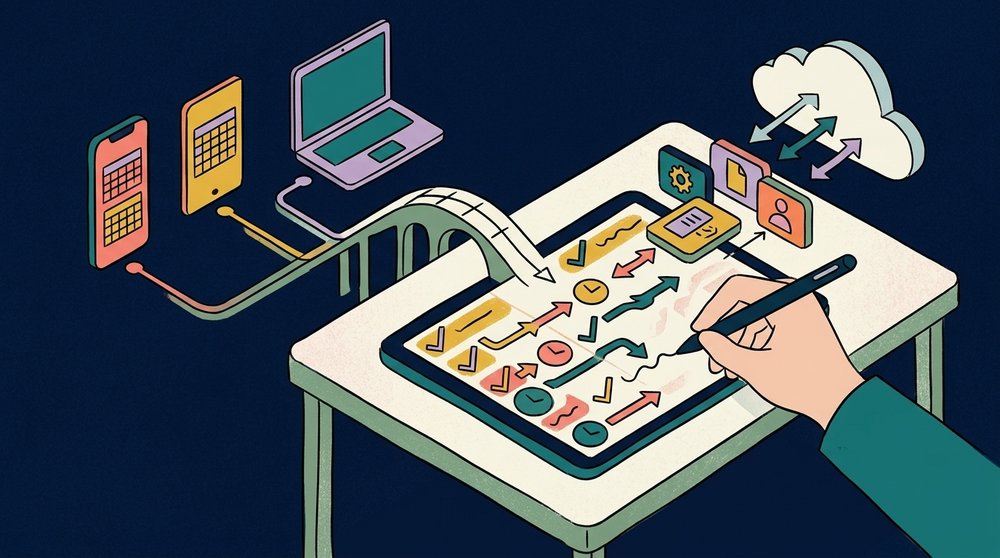
Since the reMarkable Paper Pro does not include a native calendar app, the closest thing is the Meeting Notes tool on Connect, which shows your next five meetings within the next ten hours. This tool links to your Google Calendar or Outlook account, but it won't help you map out your entire month. If you need a full week plan, use a linked PDF planner to keep your schedule in view, and the Paper Pro planner guide compares the options. This method lets you write directly on the grid while keeping all your appointments together.
For those using the smaller reMarkable Paper Pro Move, Planneriffic is a desktop app that syncs your Google, Outlook, or Apple Calendar data into a custom planner over USB. This software merges several calendar sources into one view and lets you assign each one its own color for clarity. It builds interactive PDFs with year, week, and day views that link to each other so you can navigate fast. The sync happens automatically every time you connect it, which saves you from manual file transfers. The Move planner guide walks through it.
Frequently Asked Questions
How do I undo on a reMarkable Paper Pro?
To undo a mistake, you simply tap the screen once with two fingers while you are writing or drawing on your digital page. If you need to bring back a deleted stroke, tap the screen with three fingers instead. These gestures save time by letting you avoid reaching for the toolbar constantly during your work.
How do I draw straight lines and shapes?
Draw a shape and then hold the Marker tip still at the end of the stroke to snap it into a clean form. The software automatically recognizes circles, triangles, squares, and straight lines for you. This feature keeps your diagrams and charts looking professional without any manual correction work.
Can I convert handwriting to text without Connect?
Basic handwriting-to-text conversion works without a subscription. While Connect adds advanced features like handwriting search and AI-powered conversion, you can still turn your written notes into digital text for free.
How do I transfer files without the cloud?
Turn on the USB web interface under Settings and Storage, then plug in your USB-C cable to move files locally. Open http://10.11.99.1 in your browser and drag a PDF up to 100 MB directly onto the page. This method allows you to keep your documents private without uploading them to any cloud server.
How can I make the battery last longer?
The adjustable reading light is the biggest drain on battery, so you should lower the brightness to stretch a single charge. reMarkable rates the battery at two weeks based on two hours of writing daily five days a week. Using the light at full brightness will cut that estimated time significantly.