

The Best Digital Planner for reMarkable Paper Pro Move That Syncs Your Calendar
The reMarkable Paper Pro Move is a great pocket planner, but a digital planner for it only earns its place if your real calendar gets onto the page without copying, because manual entry is a chore. If you have to write every recurring meeting by hand, you'll eventually stop using the tool. A static planner fails when your schedule changes. Syncing is vital.
Why the Move Needs a Different Planner
Because the reMarkable Paper Pro Move weighs only 230 g and features a vibrant 7.3-inch color screen, it is the kind of tool you carry in your pocket all day.
Most digital PDF planners are built for 10 or 11-inch screens, so they feel very cramped when you try to use them on this smaller display. You end up zooming in just to read your schedule, which breaks the flow of your work. The interactive PDF planner guide explains what else to check in a PDF. Since the tablet doesn't have a native calendar app, you need a file that actually fits the hardware.
Using a static PDF means you have to write every recurring meeting by hand and cross out old appointments when your schedule changes last minute. This manual chore is why so many people quit using paper planners after a few weeks, because it takes too much time. You need a planner that syncs with your digital life so you don't spend your morning re-typing the same events over and over.
Three Kinds of Digital Planner
reMarkable's built-in templates and its Methods library, which includes a 2026 calendar made for the Move, let you start planning right away. You can use them to track your days, but you still have to write every single event onto the page by hand. This method works well for people who like the feel of pen on paper, yet it falls apart if your schedule changes often.
Hyperlinked PDF planners provide a structured environment where you jump between months, weeks, and days with a tap, but these files remain static and do not update by themselves. Since a PDF is a fixed file, you must cross out a meeting and write it again if the time shifts suddenly. Most of these planners are built for larger tablets, so you might need to zoom in or find a specific version for the 7.3-inch screen, and the planner templates roundup lists sources.
Calendar sync apps like Planneriffic allow you to pull your life from Google Calendar or Outlook directly into an interactive PDF that updates every time you connect your device. This setup saves you from the chore of copying recurring events, but it requires a computer connection to keep the data fresh. If you use Developer Mode, the app can even merge your handwritten notes into the new file so you lose nothing.
The Meeting Notes tool on Connect offers a quick way to see your next five meetings within the coming 10 hours without opening a full planner file. It is a helpful check for busy afternoons, though it doesn't replace a real planner for long-term goals. You get a clear view of the day, but you still need a different way to map out the month.
What to Check Before You Pick One

Make sure the planner you choose is built for the 7.3-inch screen of the reMarkable Paper Pro Move, because templates meant for larger tablets often look cramped or hard to read here. If the layout is too tight, you'll spend more time zooming in and out than actually writing your notes. Check for clear links between the year, week, and day pages so you can jump through your schedule without getting lost.
A good tool should leave enough room to write notes next to each event, since a simple list of times rarely helps when you need to track project details. You also need to verify how recurring events get onto every page, because writing the same meeting on every page is why so many people quit.
Finally, find out if your handwriting survives when the planner is updated with new events, because rewriting weeks of notes by hand is a dealbreaker. For the wider range of options on every reMarkable, see the reMarkable planner comparison.
How Planneriffic Fills the Planner
You start by pasting URLs from your Google, Outlook, or Apple Calendar into the desktop app, or you can import local .ics files so the software can see all your scheduled events. The tool merges these different sources into one list, which helps you see your whole life at once. It builds a linked planner with year, week, and day views that let you jump between dates with ease. Each day page includes an hourly schedule and a room for notes, where you can jot down your thoughts.
Once the planner is ready, you simply plug your reMarkable Paper Pro Move into the computer using USB-C, and the app syncs everything over to the tablet. You can set it up to sync automatically every time you connect the tablet, which keeps your schedule fresh. This syncing saves you from the chore of manually writing every meeting into a static file every morning.
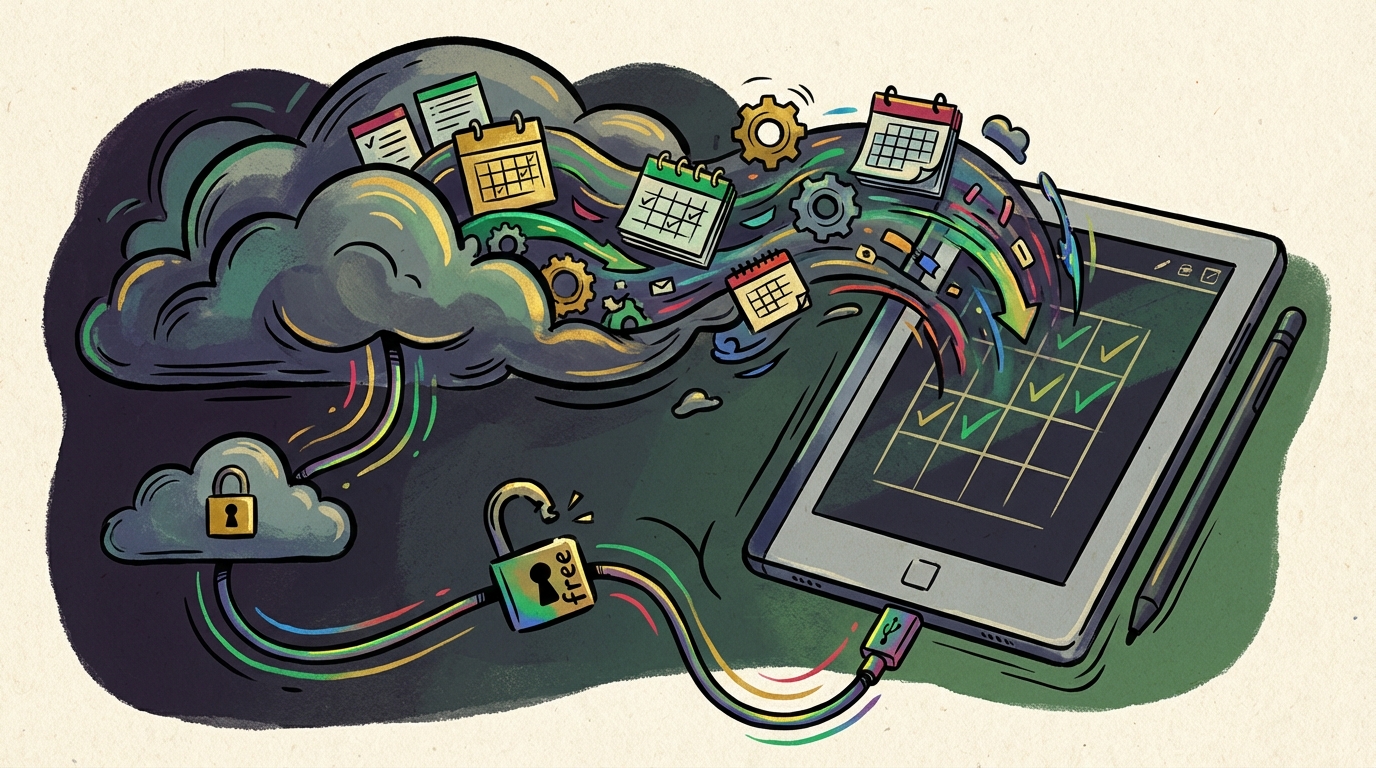
If you want to keep all your handwriting in one single file, you must enable Developer Mode (the installation guide has the steps), which requires a factory reset that deletes every file currently on your tablet. The tablet shows a boot warning every time you start it, so you should sync your files before you begin. With this mode active, Planneriffic merges your old notes into the new PDF, instead of just replacing them. Without this step, the app uploads a brand new PDF every time you run the sync process.
Skipping the Developer Mode means your handwritten notes will stay trapped in an old file because the app creates a fresh copy every time you update your calendar events. You might end up with multiple versions of your week, which makes it hard to find what you wrote. This hassle forces you to copy notes over by hand, which defeats the point of using a digital tool at all. It's better to take the time once so that your digital life stays where you expect it to be.
Frequently Asked Questions
What is the best digital planner for the reMarkable Paper Pro Move?
If you want your real calendar in the planner, Planneriffic is built for exactly this tablet: it builds interactive PDF planners from your calendar sources and syncs them onto the reMarkable Paper Pro Move. This tool creates year, week, and day views that link to each other. You'll get an hourly schedule plus space for notes on every day.
Can I sync Google Calendar to the Move?
Yes. Planneriffic syncs Google Calendar, Outlook, Apple Calendar or any iCal link into a planner on the Move over USB. reMarkable's own Meeting Notes tool on Connect also links Google Calendar, but it only lists up to five meetings in the next ten hours. It's handy for the next call, not for planning a week.
Does Developer Mode erase my tablet?
Turning on Developer Mode on the Paper Pro Move requires a factory reset that deletes every single file currently stored on your tablet. You must manually sync all your important documents before you start this process. The tablet will then show a warning every time you power it on.
Will my handwritten notes survive a sync?
Your handwritten notes will survive the sync if you use Developer Mode to merge them into a single interactive PDF file. Without that setting, each sync simply uploads a new version of the planner. This prevents you from losing work when you update your schedule.
Is there a free trial?
There is a 7-day free trial available that lets you use every feature without requiring you to provide a credit card or sign up. You can test the calendar syncing features before you decide to buy a license. The software uses a one-time purchase model with free updates. If you're still choosing a small tablet, see Supernote Nomad vs reMarkable Paper Pro Move.