

reMarkable Planner Templates Worth Trying in 2026
Finding good reMarkable planner templates is easy for free, but the ones worth keeping are built for your specific screen and linked with finger-tap tabs, while most Etsy freebies are just recycled iPad designs. These recycled designs often fail because the reMarkable only responds to link taps made with a finger. You'll struggle if the layout isn't optimized for E Ink. Avoid the pretty fakes.
Free Templates Worth Starting With
The built-in templates that come with your reMarkable provide a solid base for anyone who wants to start organizing without spending a single cent or hunting through the web for files. You can pick these basic grids and lines when you create a notebook, so they stay right where you need them. These simple tools work best for quick notes because they don't require any extra setup or technical knowledge.
The reMarkable Methods site offers free meeting minutes and daily to-do templates that help you structure your workday right from the start. You can also find a 2026 calendar that includes a version made specifically for the Move, so the layout fits the screen perfectly. These files are great for people who want a clean look that feels native to the hardware.
OnPlanners provides free PDF planners that let you choose between dated or undated pages, so you can decide how you want to track your time. OnPlanners says they're made for the reMarkable 2, Paper Pro and Paper Pro Move. It is a smart move to check a free sample before you commit to a full set.
You will find plenty of free PDFs on Reddit, GitHub, and Gumroad if you want to find something unique for your specific niche. These community files allow you to test different layouts without spending any money on a design that might not work. If a page feels cramped, you can just delete it and try another one.
When a Paid Template Earns Its Keep
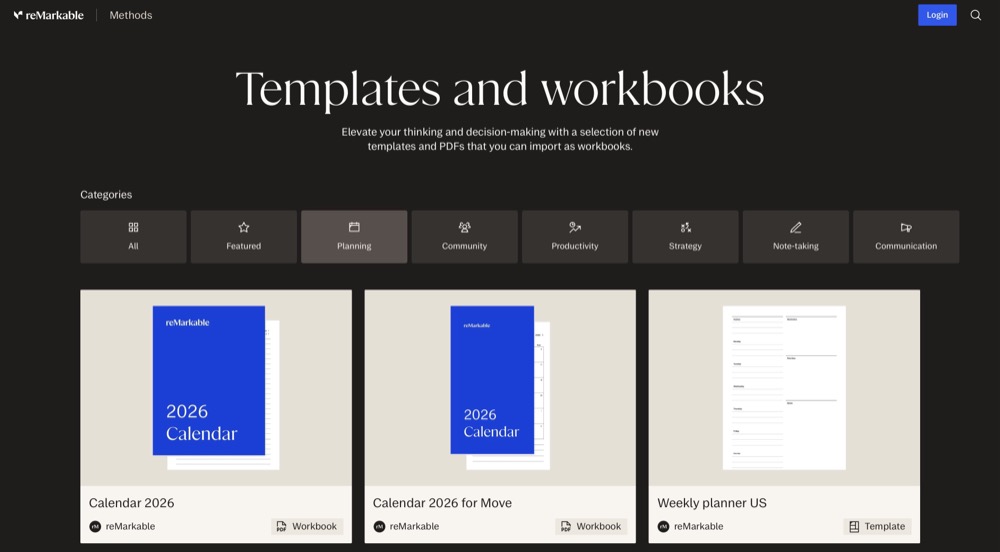
When a paid template provides a full dated year with linked day, week, and month pages, it saves you the chore of writing out dates every time you start a new notebook. This structure lets you jump quickly between the big picture and specific hourly tasks, which keeps your schedule in sync without extra effort. You get extra sections for notes or habit tracking that simple layouts often leave out.
The Connect route gives you access to the full Methods library with a 50-day trial, so you can test the professional layouts before you commit to the cost. This collection includes an annual planner and specific versions made for the reMarkable Paper Pro Move. It's a smart way to access high-quality tools without a long commitment.
Many templates you find on Etsy and Pinterest are actually GoodNotes designs, which look fine in screenshots but often don't suit a reMarkable screen once you start writing. It's much better to stick to files built specifically for E Ink screens.
How to Tell a Good Template From a Pretty One
A good template must fit your specific screen shape perfectly, because a design made for one model often looks cramped or leaves huge margins when you open it on a different device. You need to check that the links work when you tap them with a finger since the reMarkable does not respond to taps made with the pen. If the buttons are too small, you'll find yourself missing pages every time you try to navigate the month view.
You should look for files that stay under 100 MB so they transfer quickly via USB or through the web app without needing to use extra mobile tools. Light lines and open spaces provide the most room for writing, while heavy graphics can make the digital ink look muddy or hard to read. A pretty design is useless if it lacks enough space for your actual notes during a busy day.
Testing a free sample is the cheapest way to see if a layout works for your workflow before you pay for a full set. It helps you avoid buying a file that looks great in a screenshot but fails when you actually start writing. If you skip this step, you might end up with an expensive planner that sits unused because the grid is too tight.
Loading Templates and Where They Stop

You can get your PDFs onto the reMarkable through the mobile app, the desktop software, or the USB web interface, but PNG templates require unofficial tools to work at all. The PDF route is the only method that survives every software update without breaking your files. Since the tablet doesn't support custom page templates, you must stick to documents that open normally (the day planner template guide shows how to build one at the right size). This process stays simple for most users, though it adds an extra step to the setup.
Because a PDF planner is a fixed file, you can't simply drag a meeting to a new day when your schedule changes unexpectedly during the very busy week. You have to cross out the old entry, and then write the new one on the correct page. This means you might find yourself rewriting the same task multiple times if your plans shift. It feels like a chore.
If you own the reMarkable Paper Pro Move, Planneriffic builds a custom planner by pulling data from Google Calendar, Outlook, or Apple Calendar to sync it over USB. The app creates an interactive file, which links your days, weeks, and months together. It even syncs automatically every time you plug the tablet into your computer with a cable, and the installation guide covers the setup. This tool solves the problem of static pages by keeping your digital life in sync, and the reMarkable planner comparison sets it against the other options.
Frequently Asked Questions
Where can I get free reMarkable templates?
You can find free layouts by visiting the reMarkable Methods site for basic tools like meeting minutes or daily to-do lists. Many users share free samples on platforms like Reddit and Gumroad as well. Checking a free sample before paying is the cheapest way to test a planner. These files help you find the right style without spending any money. I like seeing different options before committing to a design.
Can I use GoodNotes templates on a reMarkable?
While many designs from Etsy or Pinterest look great in screenshots, they often don't actually work well on the screen of the reMarkable during use. These templates are usually built for iPad apps, not for E Ink screens, and the interactive PDF planner guide explains which parts break. You'll find they feel frustrating when you try to navigate them. Stick to files specifically made for this hardware to avoid issues. High quality files feel much better under the pen.
How do I add a planner template to my reMarkable?
The best way to add a planner is to open a PDF as a document through the mobile or desktop app, the web app, or the USB web interface. USB and web transfers take files up to 100 MB, and larger files go through the mobile or desktop app. If you want PNG templates, you'll need unofficial tools to help. Using the document method ensures your files stay stable after updates. It keeps the process very straightforward for most users.
Why don't planner links work with my pen?
The reMarkable only responds to link taps made with your finger rather than the stylus pen you use for writing. This behavior is a known quirk of how the hardware handles touch inputs. Just tap the screen with your hand to move between different pages. It takes a bit of time to get used to this habit. The pen is meant for actual writing and drawing instead.
Do I need Connect for templates?
You don't need a subscription for every template, but some specific layouts from the official site require the service for access. You can get a 50-day free trial to explore these extra features first. Most basic files work perfectly fine without any recurring monthly cost. This lets you keep your digital setup simple and affordable. You can still download many great files for free right now.