
reMarkable Planner Options in 2026: Static PDFs vs Calendar Sync Apps
Why Do I Need the Right reMarkable Planner?
Using the right reMarkable planner affects how you use your reMarkable every day. Using the wrong one turns a $400 device into a glorified notebook, while using the right one makes it the hub of your daily planning.
There are three ways to plan on a reMarkable in 2026: the built-in reMarkable planner templates that came with the device, downloadable PDF planner templates from third party vendors, and desktop applications that sync your real-world calendar events into the reMarkable planner. Each option has its pros and cons in terms of cost, ease of use, and amount of manual work each week.
This article compares all three options so you can select the one that best matches how you really work.
Built-In reMarkable Planner Templates
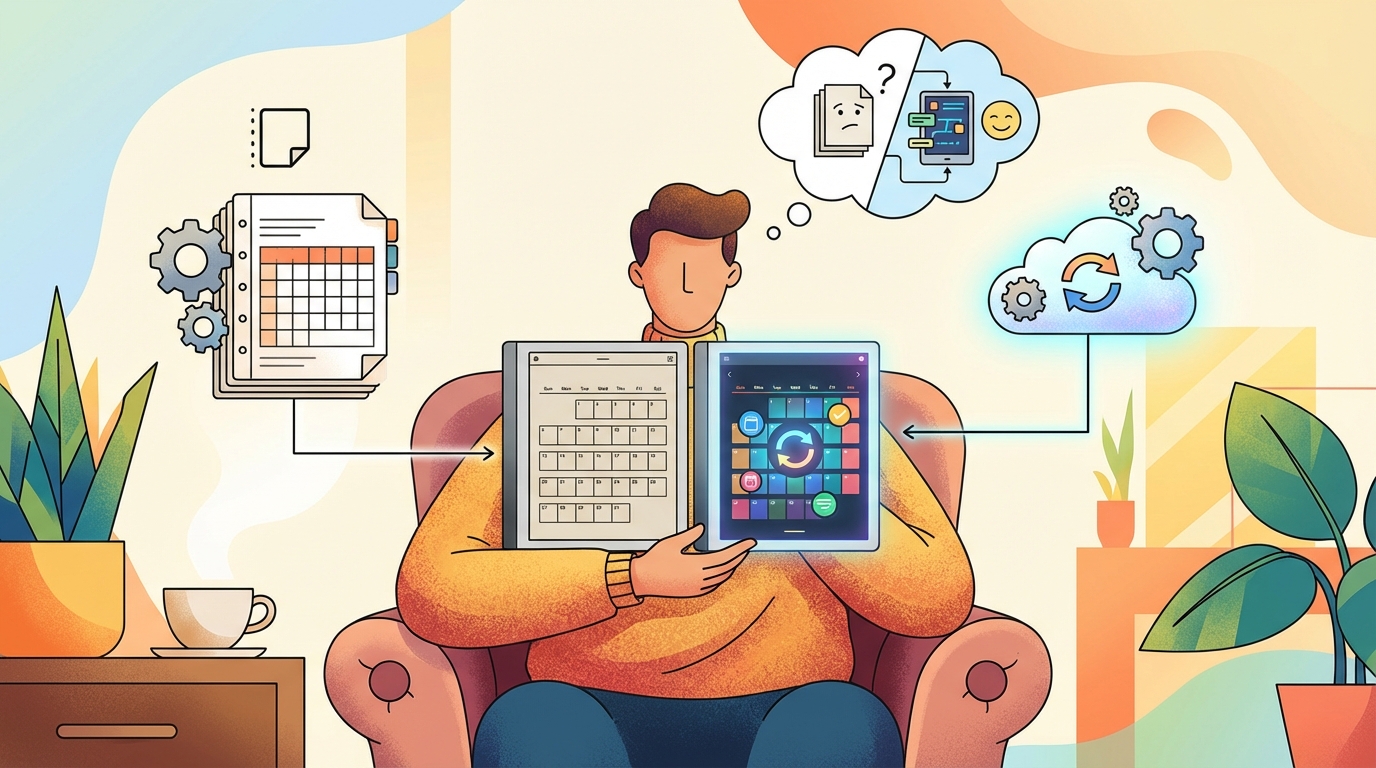
Each reMarkable comes with several planner templates. You get a daily planner, a weekly view and some other formats. To create a new page, you can select these from the template selection menu.
reMarkable's built-in templates are simple and clean. The company created these templates based on their own e-ink display so the rendering is good and the layout is suitable for handwriting with the Marker. You can begin using these immediately without having to download anything or turn on Developer Mode.
Limitations of Built-In Templates
The largest shortcoming of the built-in templates is that they are simply blank pages. The templates do not come with predated pages. You cannot navigate between months or weeks. You have to write the date manually at the top of each page and then proceed. There is no way to import your events from Google Calendar, Outlook or any other calendar source.
If you're someone who wants a basic daily to-do list or a place to write down your priorities each morning, the built-in templates should suffice. However, if you have a busy schedule with meetings, deadlines and recurring events across multiple calendars, you'll find yourself spending more time entering your events into your planner than you're spending working on your daily or weekly plan.
Who Uses the Built-In Templates
Built-in templates are best suited for individuals that don't require structure. If you prefer blank pages and your planning style is more similar to journaling than scheduling, the built-in templates provide a good starting point. There is no additional charge for the built-in templates and they function on every reMarkable device without requiring any setup.
Third-Party PDF Planner Templates
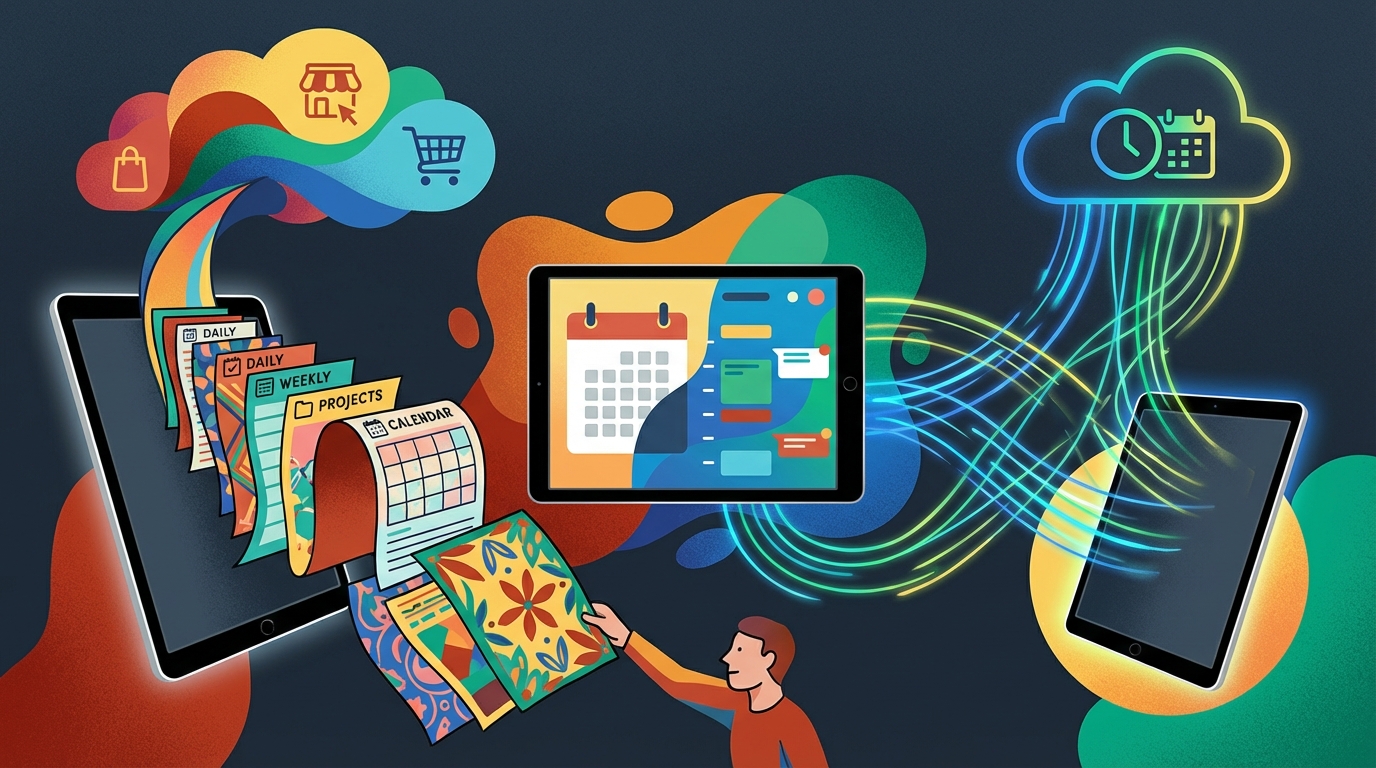
The most common method of using a reMarkable planner in 2026 is a downloadable PDF template. Many sites such as OnPlanners and Etsy sellers offer numerous options. Costs vary from $0 to $30 per year depending on the number of templates purchased.
Compared to the built-in templates, PDF templates offer a considerable upgrade. Most PDF templates contain predated pages for every day, week and month of the year. PDF templates also contain links that allow you to click a date on the monthly view and quickly transition to the corresponding day view. Many PDF templates also include habit trackers, goal setting pages, financial planners, etc. along with the calendar views.
Statista conducted a survey of over 600 respondents in 2024 and found that the global planner and calendar industry has exceeded $3.7 billion. Digital planners represent the fastest growing segment of the market due to the increased use of tablets for paper-like planning without the environmental waste.
Monthly Update Problem with PDF Templates
PDF templates are static files. Because your schedule changes every week, your PDF template will not. As a result, when a meeting moves from Tuesday to Thursday, you will have to cross it off and rewrite it. When a recurring event begins, you will have to add it to every future page manually.
According to a 2024 study, approximately 70% of people who purchase PDF planners continue to use them for only 2-3 weeks. At this point, the effort of manually adding your events to the planner is considered busywork. The planner gathers dust in the reMarkable file system and the reMarkable becomes a notebook.
Some sellers periodically issue quarterly or monthly updates to their templates. Even though updates are available, you still have to download the new PDF file, copy it to your tablet and then write the same events into your planner again.
Choosing the Right PDF Template
If you opt for a PDF template, seek out ones that include full link navigation between the various views (e.g., daily, weekly, monthly). Avoid PDF templates developed for iPad apps (e.g., GoodNotes, Notability) because they typically utilize features that do not function on the reMarkable (e.g., fillable forms, JavaScript-based interactivity). The reMarkable Official Gallery offers free PDF templates developed specifically for the reMarkable.
Review the seller's update history and read reviews. A planner that was last updated in 2024 may not include 2026 dates. Also, many sellers stop supporting their planners after the initial sale.
Calendar Sync Apps
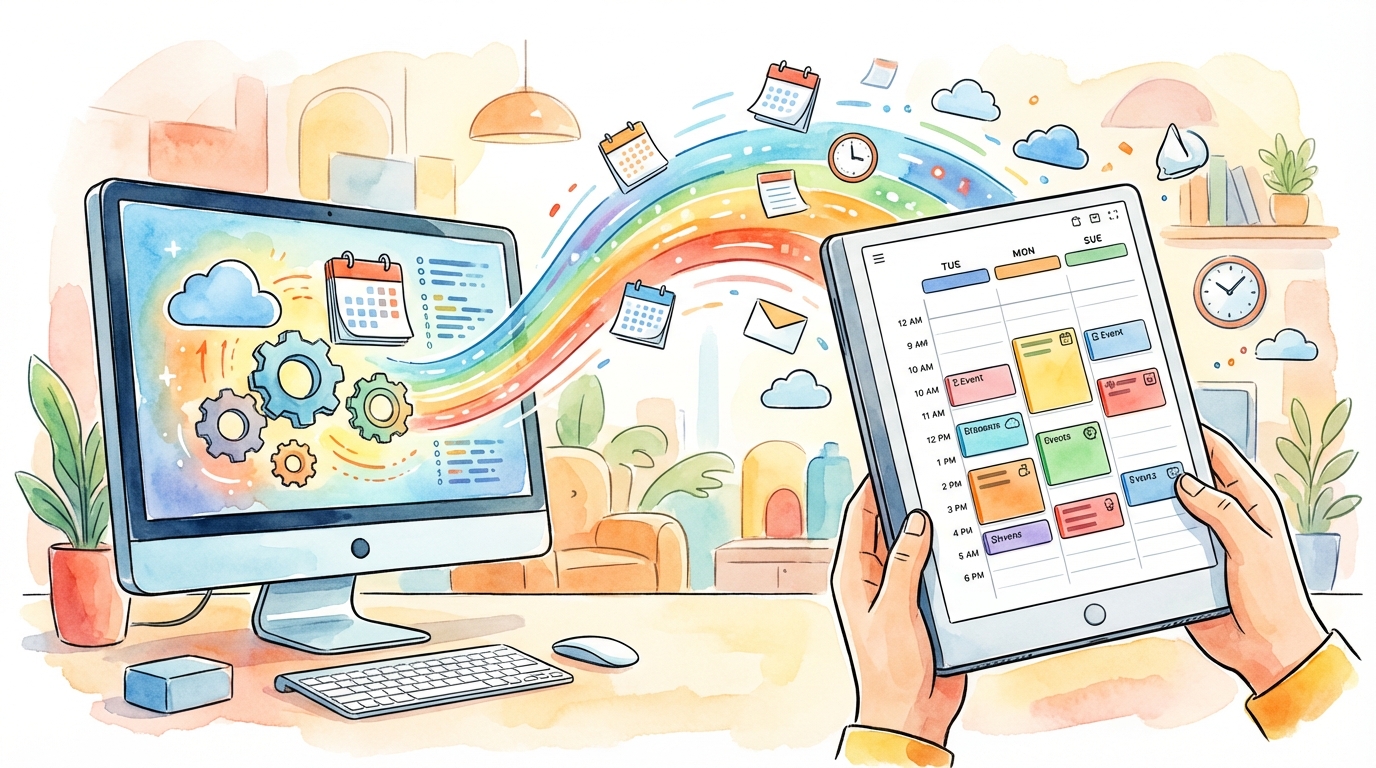
The third option is a desktop application that generates your planner PDF from your actual calendar data. Rather than manually writing your events into your planner, the app imports your events from your Google Calendar, Outlook, Apple Calendar, or other .ics feeds and places them in the correct time slots.
Planneriffic is an example of this methodology. Planneriffic runs on both Mac and Windows and generates an interactive PDF planner with yearly, monthly, weekly and daily views. The PDF is transferred to your reMarkable via USB and your handwritten notes remain on the tablet between syncs.
Impact of Calendar Sync on Your Workflow
The difference is substantial. Using a static PDF template, your morning routine involves opening your planner, checking your phone for today's appointments and writing them in. Using a calendar sync app, you simply plug in the USB cable and your planner contains today's appointments. You can then open it and start planning around your current commitments.
Additionally, when your schedule changes during the day, the next sync reflects those changes. A meeting that changed from 2pm to 4pm will show up in its new time slot during the next sync. You will never have to delete and rewrite.
Sync Apps Are Best for Busy Schedules
Calendar sync apps differentiate themselves from the other options by providing a single planner view for multiple calendars. So you can see work, personal, family and project deadlines in a single planner. Each calendar source can also have its own format, allowing you to distinguish them visually.
Local vs. Cloud-Based Data Processing
One concern with calendar sync applications is where your calendar data resides. Cloud-based applications send your calendar data to a remote server for processing. Planneriffic functions differently. Planneriffic processes your calendar data locally on your machine and then syncs it with the reMarkable via USB. Your calendar data remains on your machine.
This is beneficial for professionals who deal with confidential scheduling information. Lawyers, therapists, executives and others who have obligations of confidentiality can use a locally processed planner without worrying about a third party accessing your calendar data. Please refer to the Installation Guide for further details regarding how the USB sync operates with Developer Mode.
Comparison of All Options
Below is a comparison of the three reMarkable planning options in terms of how you will likely use them on a daily basis:
| Feature | Built-In Templates | PDF Templates | Calendar Sync App |
|---|---|---|---|
| Cost | Free | $0-$30/yr | $29 one-time |
| Calendar Events Auto-Filled | No | No | Yes |
| Pre-Dated Pages | No | Yes | Yes |
| Hyperlinked Navigation | No | Yes | Yes |
| Updates Based on Schedule Changes | No | No | Yes |
| Setup Required | None | File Transfer | 5 min |
| Works Offline | Yes | Yes | Yes |
Which Option Best Matches Your Planning Style
If you rarely look at your calendar and simply want a daily page to record your to-do lists and free-form thoughts, the built-in templates will be sufficient. You will not miss what you are not using.
If you enjoy the structured nature of a planner with dated pages and monthly spreads, but your schedule is relatively predictable, a PDF template provides structure at a low cost. Simply ask yourself if you will maintain the manual entry of events in your planner beyond the first month.
If you have a busy and/or unpredictable schedule with meetings that shift, multiple calendars to monitor and you desire your planner to reflect your true day without manual input, a calendar sync app will save you time each day. The free trial allows you to evaluate the functionality prior to purchasing.
Tips for Maximizing Your reMarkable Planner
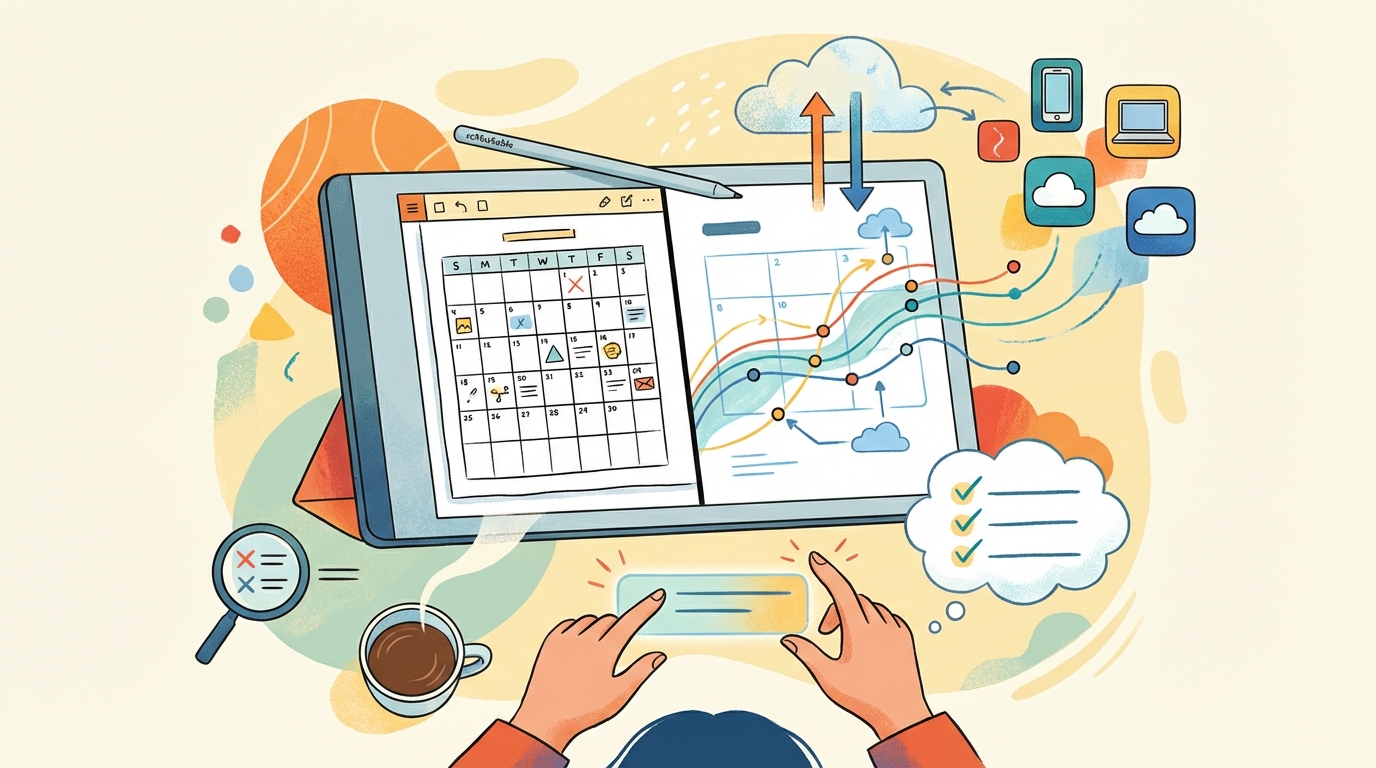
Regardless of which type of reMarkable planner you select, a few habits will significantly increase the effectiveness of the reMarkable for daily planning.
Establish a Morning Daily Review Routine
Spend 2 minutes every morning reviewing your planner page for the day. Identify your top 3 priorities. Cross-check with your digital calendar if you are using a static PDF template. Establishing this daily review will transform the planner from a passive reference into an active tool.
Utilize Note Pages to Provide Context
Many planners include areas for taking notes next to the daily schedule. Utilize these areas to write down context for meetings; the agenda, questions you wish to ask, or decisions that need to be made. Providing context adjacent to the time block makes your planner more functional than simply listing the names of your events. Planneriffic v1.1 added specific note pages for each day specifically for this purpose.
Avoid Overcomplicating Things
The most effective planners are the simplest. Refrain from purchasing a template that includes 15 different types of tracking pages and complex layouts. You will primarily utilize the daily view and the weekly view. Everything else is extraneous.
FAQ

What is the Best reMarkable Planner for 2026?
That depends on your workflow. For individuals with busy and ever-changing schedules, a calendar sync app such as Planneriffic will provide the greatest benefit since it populates your events automatically. For those who prefer to plan manually, a hyperlinked PDF template from OnPlanners or the reMarkable template gallery will meet your requirements at a lower price point.
Do I Require a reMarkable Connect Subscription to Use a Planner?
No. The built-in templates and PDF templates operate without a subscription. Planneriffic synchronizes with the reMarkable via USB through Developer Mode. You do not require a reMarkable Connect subscription to use Developer Mode.
Can I Use PDF Planners Designed for iPad on My reMarkable?
While some PDF planners developed for iPad will function on the reMarkable, many will not. PDF planners developed for iPad applications (e.g., GoodNotes, Notability) frequently include features that do not function properly on the reMarkable (e.g., fillable forms, JavaScript-based interaction). Stick to PDF templates that explicitly state they are compatible with the reMarkable.
How Do I Load a PDF Planner onto My reMarkable?
You can load a PDF planner onto your reMarkable by dragging the PDF file into the reMarkable Desktop Application, uploading it through the reMarkable Cloud, or by transferring it via USB using Developer Mode. The cloud option requires a Connect subscription. Transferring via USB using Developer Mode is free and functions without internet.
Will My Handwritten Entries Remain Once the Planner Has Been Updated?
As long as you retain the original file, your handwritten entries will remain unchanged on a PDF template. Additionally, Planneriffic retains your handwritten entries between syncs. Only the upcoming pages will be populated with the new calendar events. The pages you have previously completed will retain your handwritten notes unaltered.
Does Planneriffic Support the reMarkable 2 or Paper Pro?
Currently, Planneriffic supports the reMarkable Paper Pro Move. If you own a reMarkable 2 or Paper Pro, PDF planner templates will be your best option at the moment. Refer to the Blog for updates on device support.