

Interactive PDF Planners for reMarkable: What Works and What Breaks
The Problem With Most Interactive PDF Planners
You've been searching for a great interactive PDF planner online and finally found one. The planner has clickable tabs, month to month navigation, a habit tracker and a very clean layout. You put it into your reMarkable and begin to click through it. Some of the links work, while others don't work at all. All of the checkboxes are static images and the drop-down boxes are stuck in place.
This is the typical experience for most reMarkable users looking to use an interactive PDF planner that was originally designed for use with an iPad app such as GoodNotes or Notability. The original planner had features that were reliant on PDF features that reMarkable doesn't support.

There is a big difference between how an iPad PDF app handles interactive features and how reMarkable renders them. reMarkable supports PDF and EPUB files, according to their documentation. However, "supporting PDF files" doesn't necessarily mean that reMarkable supports every single PDF feature. Knowing exactly where that line is drawn will save you from wasting money on planners that look broken on your device.
Which Interactive Features Actually Work on reMarkable

Not all interactive PDF features are created equally. There are literally dozens of ways that PDF files can be interactive. However, only a limited number of those interactive PDF features actually work on reMarkable. The following are the features that do actually work.
Internal Hyperlinks & Page Navigation
The first feature is hyperlinks, and they work on reMarkable. If a PDF planner has a clickable month tab that takes you to page 45, that link works. You tap the link and the reMarkable will take you to the correct page.
This is why templates from PDF planner creators like eInkPads are useful on the reMarkable. The internal page links used to build the navigation structure of the planner work. You can click on a date on a monthly view and go directly to the daily view. You can click on a "Back to Month" button and return to the monthly view.
Standard PDF Elements
The second feature is that the reMarkable supports standard PDF elements. The reMarkable will display all of the standard PDF elements without issue. The following elements are supported:
- Text
- Images
- Vector graphics
- Page layouts
- Tables
- Color content (on the Paper Pro color display)
In addition, the Quick Browse feature works with PDF planners. You receive a scrollbar that allows you to browse through the entire planner file without having to tap on each individual link.
Which Interactive Features Fail on reMarkable

As previously stated, the majority of interactive PDF planners are based on the idea of creating a planner for use with an iPad app like GoodNotes. Unfortunately, most of the interactive features used by GoodNotes, and other apps like it, are either unsupported, or partially supported, by the reMarkable firmware.
AcroForms (Form Fields & Drop Down Menus)
AcroForms are likely the largest source of frustration when using an interactive PDF planner on the reMarkable. AcroForms allow you to create text input fields, checkboxes, radio buttons, and dropdown menus inside of a PDF file. Many planners use these types of interactive features for their habit trackers, task checkboxes, and daily note sections.
Unfortunately, the reMarkable does not support AcroForms. As such, the checkboxes will appear as static images, the text input fields will not allow you to type into them, and the dropdown menus will be completely unresponsive.
Many people are caught off guard by this fact. A planner may look amazing in the product preview, with interactive checkboxes and fillable text fields, and yet, once you load it onto your reMarkable, it appears as a completely static document.
JavaScript & Dynamic Content
Some planners also use embedded JavaScript to perform tasks such as date calculations, automatic date entry, and conditional formatting. Adobe Acrobat supports JavaScript. GoodNotes supports some of this.
Unfortunately, the reMarkable does not support JavaScript. In fact, the reMarkable has no JavaScript engine for PDF files. As such, if a planner requires JavaScript to function, the planner will not work at all. Examples of JavaScript dependent features include date calculators, auto-populating fields, and script driven navigation.
Multimedia Embedded in PDF Files
Another area where planners often fail is with multimedia embedded in PDF files. PDF files can include both video and audio. However, neither video nor audio playback is possible on the reMarkable due to the nature of the e-ink display and hardware.
Bookmark Panels
Finally, another feature that sometimes fails is bookmark panels. Bookmark panels are typically displayed as a side bar table of contents that many desktop PDF readers will show. reMarkable users have reported inconsistent support for PDF bookmarks. While internal hyperlinks embedded in the page content always seem to work, bookmark panels are less reliable. If a planner relies solely on bookmarks for navigation instead of clickable links on the page itself, you may lose access to that navigation altogether.
Why iPad Planners Do Not Translate To reMarkable

Most interactive PDF planners are written for use on iPads with apps like GoodNotes, Notability, etc. These apps provide a wide range of additional PDF features that the reMarkable firmware does not.
Examples of features that GoodNotes provides but the reMarkable does not include:
- Form fields (checkboxes)
- Annotations with colors
- Multimedia embedding (video & audio)
- Advanced gesture-based navigation
When a planner is optimized for GoodNotes, it will use all of the above features. When that same file is loaded onto a reMarkable, all of the features that made it useful are gone.
Market research indicates that over 60% of all digital planner sales on Etsy are targeted towards GoodNotes and Notability users specifically. The reMarkable market is much smaller and therefore fewer template designers test their products on e-ink devices. The end result is a huge influx of beautiful planners that look fantastic in the product preview but fail on your tablet.
It is not a fault of the reMarkable hardware. Rather, it is a design decision. The reMarkable has chosen to prioritize a distraction-free, paper-like writing experience over multimedia and rich interactivity. That decision makes sense for handwriting and focused work. However, that decision means that you must use planners that are specifically designed to meet those limitations.
Before Purchasing An Interactive PDF Planner
To avoid disappointment and frustration, prior to purchasing any interactive PDF planner for the reMarkable, please ensure that the following conditions are met:
- Navigation uses internal hyperlinks only. Check the planner to see if navigation uses only internal hyperlinks, not bookmarks only. Links that you tap to navigate within the planner should always be the most reliable interactive feature.
- Does the planner rely on form fields? Do the product descriptions mention fillable checkboxes, editable text fields, or dropdown selections? If so, those features will not work.
- Was the planner specifically designed for the reMarkable? Look for planners that specifically indicate reMarkable compatibility, not just "works with all PDF viewers".
- Is the planner under 100MB? The reMarkable web interface will only allow you to upload files that are under 100MB. Therefore, any planner that is larger than 100MB may run into file size problems.
Better Alternatives for reMarkable Planning

While the reMarkable does not natively support most interactive PDF features, there are solutions available for the planner community that are specifically designed to accommodate how the reMarkable actually works.
reMarkable-Specific PDF Templates
The best PDF planner templates for the reMarkable are those that are specifically designed for it. reMarkable offers free templates for use with the reMarkable specifically on their Methods website. Additionally, third party sellers on OnPlanners and Etsy now offer reMarkable specific planners that utilize hyperlinks instead of form fields.
These reMarkable specific templates will provide you with a predated planner with monthly and weekly views, and clickable links to navigate between the different views. While you will lose the capability to use fillable checkboxes, you will gain the ability to write directly on the planner pages, which is the preferred method of writing for most reMarkable users.
For a full comparison of static PDF planners versus other planner formats, see our review of reMarkable planner formats in 2026.
Calendar Sync Apps
The biggest drawback of any PDF planner (static or interactive), is that your calendar events are never automatically imported into the planner. You will need to manually enter each and every event, meeting, deadline, and appointment.
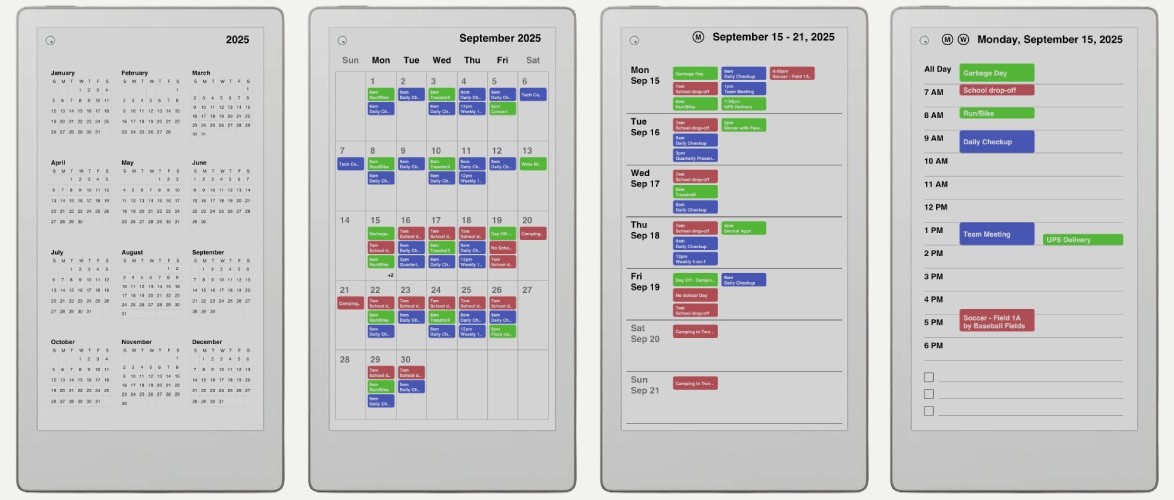
Calendar sync apps address this issue by creating a PDF version of your planner that already contains all of your actual calendar events from Google Calendar, Outlook, or Apple Calendar. Planneriffic is a desktop application for Mac and Windows that syncs your calendars to your reMarkable Paper Pro Move via USB. Planneriffic creates PDF planners with links between year, month, week, and day views, and your actual calendar events are already inserted into the planner.
By using a calendar sync app, you bypass the issue of whether or not your planner will work on the reMarkable. Instead, the planner is recreated with new data each time you sync your calendar. Your handwritten entries are saved between syncs, and the calendar data remains up to date without you needing to manually enter each and every event.
You can download Planneriffic for a free trial period of 7 days. The installation instructions detail the complete setup process, including activating Developer Mode on your reMarkable.
Using Built-In Planner Templates
If you prefer to keep things simple, the reMarkable comes with several built-in planner templates. Both the daily planner and the weekly planner templates are clean and easy to use. They lack navigation links and predated pages, but they work without requiring any setup or transferring files.
This is a suitable option if you require minimal planning. Simply write the date at the top of a blank page each morning, write down your priorities, and you're good to go. No compatibility issues, no broken features, just a paper-like planning experience on an e-ink screen.
Testing Your PDF Planner Compatibility
If you already have an interactive PDF planner and wish to test its compatibility before committing to it, follow these steps:
- Load the PDF planner onto your reMarkable via USB, the mobile app, or the web interface.
- Launch the PDF planner and click on every single navigation element. Will month tabs take you to the proper page? Will "back" buttons work?
- Click on any checkboxes or form fields. If clicking on them results in no action being taken, then the planner utilizes AcroForms, and the reMarkable will not be able to render them.
- Inspect every page to ensure that they are displaying properly. Some planners employ layered PDF elements that may not display properly.
- Use your Marker to write on a couple of pages to ensure that the writing experience works well with the planner layout.
If the links and navigation work but the checkboxes do not, you can still use the planner. Instead of using checkboxes, simply treat the checkbox areas as places to draw handwritten check marks. Many reMarkable users find this solution acceptable for their daily use.
Frequently Asked Questions

Will hyperlinks in PDF planners work on the reMarkable?
Yes. Internal hyperlinks that allow you to jump between pages will always work on all reMarkable devices. This is the primary interactive feature that enables PDF planner navigation to work on e-ink tablets.
Can I use planners developed for GoodNotes on the reMarkable?
You can import planners developed for GoodNotes into your reMarkable, but most features developed for GoodNotes will not work on the reMarkable. The basic PDF structure and hyperlinks will work, but the additional features developed for GoodNotes will not.
Why won't checkboxes work in my PDF planner on the reMarkable?
Most interactive checkboxes in PDF planners utilize AcroForm fields. The reMarkable does not support AcroForms. Checkboxes will appear as static images. You can write a check mark directly over them.
What is the best planner format for the reMarkable?
The best format is a PDF that contains hyperlinks to enable navigation, predated pages, and clean layouts that are designed for e-ink displays. Avoid planners that utilize form fields, JavaScript, and multimedia features. Planneriffic creates planners in this format and automatically includes your actual calendar events.
Does the reMarkable display color in PDF planners?
The reMarkable Paper Pro has a color e-ink display and will render color PDFs. Older models of the reMarkable will display all content in black and white.
Is there a way to get calendar events into a reMarkable planner automatically?
Static PDF planners will never include your calendar events. You will need to use a calendar sync application to generate your planner with your calendar events already included. Planneriffic syncs Google, Outlook, and Apple calendars to the reMarkable Paper Pro via USB and retains your handwritten entries between syncs.