

How to Turn Your reMarkable Into a Pro-Level Planner
A reMarkable becomes a pro-level planner when it runs a small system you keep every week, rather than when it holds the fanciest template, because the biggest single upgrade is getting your real calendar onto the page. Many people focus on pretty layouts instead of the habits that keep their week organized. Getting your calendar onto the page does more for the daily details than another template. Consistency matters more than looks.
Build the System Before the Template
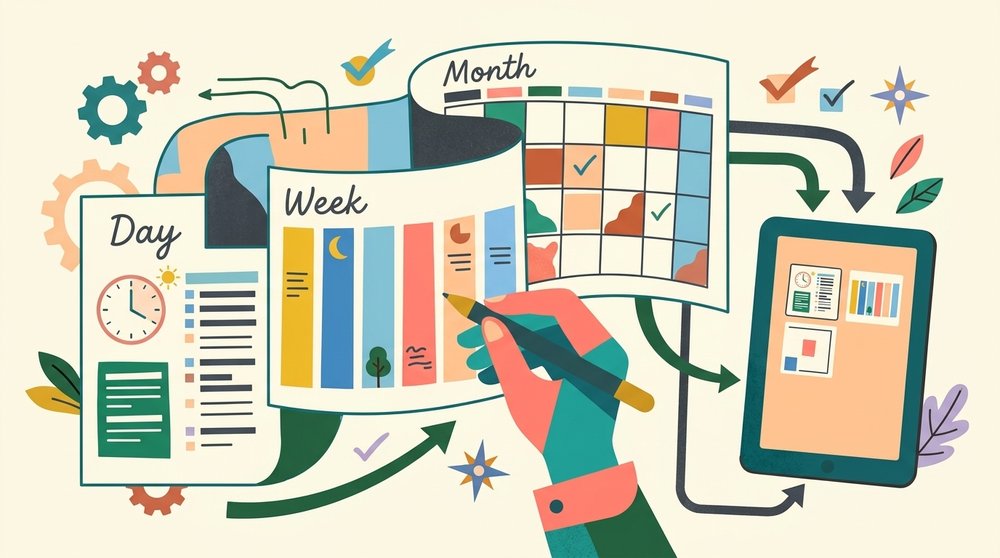
A good planning system relies on three specific layers, which include a year view for big dates, a week view for your commitments, and a day page for your hours and quick notes. You find that planners with fewer page types get used more because the day and week pages do the most work. If you try to use too many layouts, you'll likely end up feeling overwhelmed and stop using the tablet. Keeping things simple ensures that you focus on the work that matters because you avoid handling complex digital files.
You can start with the built-in templates or free ones from reMarkable Methods such as Daily to-dos, with the full library, including an annual planner, on Connect. Linked PDF planners are the best route for dated pages, because they let you jump between months and weeks. These premade tools help you build a functional flow while you avoid having to design every single page from scratch.
Since reMarkable doesn't support custom page templates directly, you must import your own layouts as PDFs if you want a specific look or feel, and the planner templates guide lists good starting files. This process adds a bit of friction, but it ensures your system actually fits your unique life needs. If you don't build this system first, your digital notebook will just become a messy pile of thoughts.
Tools That Make It Feel Pro
Quick sheets let you jot down a stray thought from the home screen and file it later, which means you never lose a good idea just because you were busy walking around. These small captures keep your brain clear while you focus on the task in front of you. You can use folders and tags to keep your projects organized so that everything stays where you expect it to be. It's a simple way to manage the mess of daily life.
The lasso tool lets you select your handwriting so you can move a task from one day to the next when your schedule shifts, without having to rewrite the whole thing. This flexibility makes the digital planner feel like a real notebook rather than a static file. You can also use shape snapping to draw perfect boxes and lines which keeps your grids looking clean and professional. It saves the time you would usually spend fixing a messy page.
On the reMarkable Paper Pro and Move, you can write in color, which allows you to assign fixed meanings to different areas of your life like work or home tasks. You might use red for urgent deadlines and blue for personal calls so you can see your priorities at a glance. Since the highlighter darkens as you add layers, you can track progress by shading over finished items. This makes a busy page much easier to read.
Tapping with two fingers to undo (one of the Paper Pro tips and tricks) lets you fix a mistake instantly so you don't break your flow during a deep planning session. This small gesture keeps you in the zone while you map out your next week or month. These tools together turn a basic tablet into a sharp instrument that works as fast as you think. It is the difference between a system you use and one you just ignore.
The Weekly Review That Holds It Together
You should spend a few minutes every Sunday to flip through your reMarkable notes from the past week, which helps you see what you finished and what still needs help. Use the lasso tool to grab those unfinished tasks, and drag them into the next week's page with ease. This way is much faster than writing everything out again, because it keeps your handwriting the same as you move through your days. It keeps your focus sharp, so you don't lose the small details that often fall through the cracks.
When you look ahead at the coming days, the Meeting Notes tool on Connect can pull in your schedule from Google Calendar or Outlook so you can prep for what's coming next. The tool creates prefilled notes with titles and agendas, which means you're ready before you even walk into the room. This prep saves time. You can see the next five meetings at a glance, which stops you from being surprised by sudden changes in plans.
Using a static PDF planner makes the process feel like chores because you have to rewrite every moved event or recurring task by hand every time the schedule shifts. Writing the same things over and over is why most people eventually stop using their planners, because it feels too hard. Since the file is fixed, you can't just move a block around without making a mess of the page. A digital system lets you focus on the work itself, so you don't have to worry about updating the calendar.
Adding Your Real Calendar

If you want to stop writing every single meeting by hand on a reMarkable Paper Pro Move, Planneriffic lets you pull your schedule from Google, Outlook, or Apple Calendar directly into a custom PDF planner. This tool builds an interactive file that has year, week, and day views which link to each other so you can jump around fast. Each day page includes an hourly schedule plus plenty of room for notes, which keeps your thoughts organized.
You can merge several different calendar sources into one view and give each one its own color to help you see your life at once. The planner syncs over USB, and it can sync automatically every time the Move connects. This means your digital pages always match your real-world commitments without you having to manually update them.
To keep your handwriting when a new sync arrives, turn on Developer Mode on the Move. Turning it on needs a factory reset that deletes every file on the tablet, so sync your files first, and afterwards the tablet shows a warning at every boot. The installation guide walks through each step.
You can try the whole system for seven days without giving a credit card or even signing up for an account. If you like it, the license is a one-time purchase that includes free updates, and the Move planner guide shows the finished planner. It is a simple way to keep your digital life in sync with your actual life.
Frequently Asked Questions
Can a reMarkable be used as a planner?
You can absolutely use a reMarkable as a digital planner by importing hyperlinked PDF files or using the built-in templates provided within the system. The reMarkable Methods library offers daily to-do sheets and annual planners to get you started. These layouts allow you to write your schedule just like a real notebook. It provides the tactile feel of paper while keeping your life organized.
What is the best planner setup for reMarkable?
The best setup involves using a hyperlinked PDF planner that features interconnected year, week, and day views to keep navigation fast. This structure allows you to jump between different timeframes with a simple tap of your finger. You should use different colors to represent various areas of your life for clarity. This method makes your daily commitments easy to read at a glance.
Can I add my Google Calendar to a reMarkable?
You can link your Google Calendar to the reMarkable through the Meeting Notes tool on Connect to see your upcoming appointments, or use a sync app such as Planneriffic on the Paper Pro Move. This feature lists up to five meetings occurring within the next ten hours on your screen. You can then create a meeting note with the title and agenda already filled. It helps keep your professional schedule right next to your writing space.
How do I move a task to another day?
To move a task, you should use the lasso tool to select your handwriting and then drag it to the new page. This process is much faster than erasing and rewriting the text manually when your plans change. You can also copy the selection and paste it elsewhere if needed. This flexibility helps keep your digital planner dynamic without any extra effort.
Do I need Connect to plan on a reMarkable?
You don't strictly need Connect to plan if you are comfortable manually transferring your PDF files via a USB-C cable. Without the service, your notes stay on the tablet and only files used in the last fifty days stay in the cloud. You can still use all the planner features by importing files locally. This approach works well for those who prefer to keep their data offline.